In a world where digital clutter reigns supreme, keeping your notes organized is more crucial than ever. Whether it’s a brilliant idea that struck in the shower or a grocery list that could rival a novel, turning those iPhone notes into PDFs can save the day. Imagine the satisfaction of knowing your thoughts are neatly tucked away, ready for sharing or printing, without the risk of them disappearing into the digital abyss.
Understanding iPhone Notes
iPhone Notes serves as a versatile tool for capturing thoughts, reminders, and essential information. Users find convenience in its straightforward interface, facilitating quick note-taking from anywhere.
What Are iPhone Notes?
iPhone Notes comprises a digital app for jotting down and organizing thoughts. This application allows users to create lists, write essays, or save images. Multiple formatting options enhance flexibility, and features, such as sharing and collaboration, provide additional usability. Notes sync seamlessly with iCloud, ensuring access across all devices. Users can also lock specific notes for added security, making sensitive content safe.
Benefits of Saving Notes as PDF
Saving notes as PDFs presents several advantages, particularly for sharing and archiving information. PDF files maintain document formatting, ensuring that content appears consistent across platforms. Users can easily email PDFs or print them for physical records. Additionally, PDF documents can be protected with passwords, preserving privacy for sensitive information. Collaboration becomes simpler, as recipients can access files without needing specific apps, making distribution more efficient.
Steps to Save an iPhone Note as a PDF
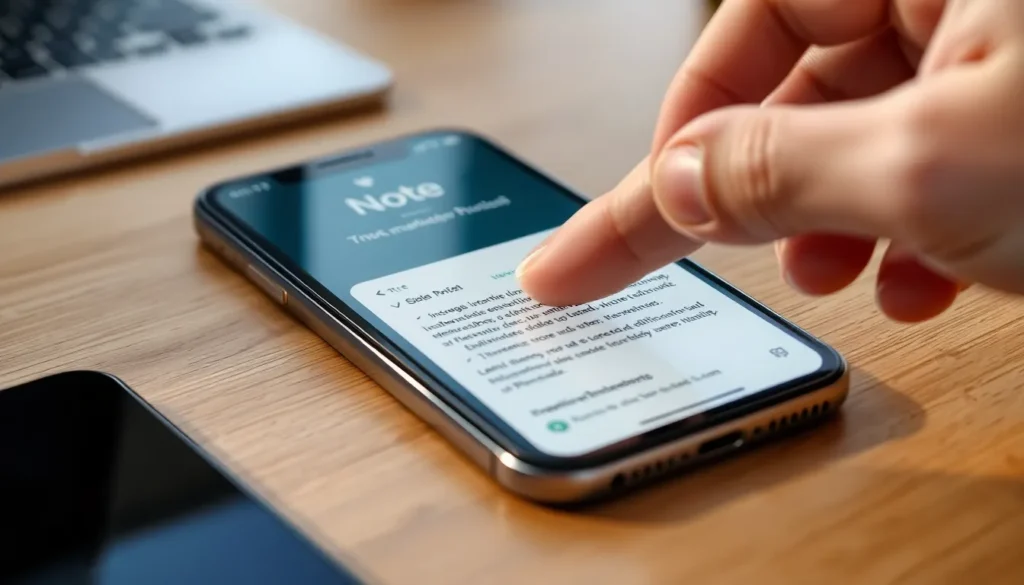
Saving an iPhone note as a PDF is straightforward and enhances document management. Follow these steps to effectively convert your notes.
Using the Share Feature
Open the note you want to convert. Tap the share icon, usually situated in the upper right corner. Choose the “Print” option from the menu. In the Printer Options, perform a pinch-out gesture on the note preview. This action transforms the note into a PDF format. After converting, select the share icon again to save the PDF to desired apps, like Files or email it directly.
Using Print Options
Access the note on your iPhone. Click on the share icon and select “Print.” When the Printer Options screen appears, zoom in on the note preview using a pinch gesture. This process changes the view to a PDF file. From here, you can save or share the newly created PDF by selecting the appropriate option. Store the PDF in apps or share it via email for easy access.
Tips for Saving Notes Efficiently
Saving notes efficiently ensures quick access and better organization. Proper strategies can enhance usability and streamline the process.
Organizing Notes for Better Access
Creating folders for specific topics promotes organization. Labels or tags can help categorize notes, making it easier to locate information. Regularly deleting outdated notes reduces clutter and keeps the interface clean. Prioritize important notes by pinning them at the top, allowing for immediate access. Consistently reviewing and reorganizing notes ensures they remain relevant and useful.
Using Third-Party Apps
Third-party apps can significantly augment note-saving efficiency. Apps like Notability or GoodNotes offer advanced features such as handwriting recognition and enhanced editing tools. Many of these apps allow seamless PDF conversion directly from notes, simplifying the saving process. Integration with cloud storage enables easy backup and sharing across platforms. Consider exploring these options for improved organization and versatility in managing iPhone notes.
Troubleshooting Common Issues
Users may encounter issues while saving notes as PDFs. Understanding these problems helps resolve them efficiently.
Notes Not Exporting Properly
Sometimes notes fail to export correctly, which can be frustrating. Checking the note’s content for unsupported features often helps. For example, if it contains specific images or formatting, that might cause problems during the conversion. Restarting the iPhone can sometimes resolve minor software glitches affecting the Notes app. Users should ensure they have the latest iOS version, as updates may fix bugs related to note exporting. If notes still don’t export, trying a different method like copying the content into a new note may provide a workaround.
PDF Quality Concerns
Concerns about PDF quality may arise when notes are converted. If text appears blurry or formatting looks off, adjusting the font size before exporting can improve clarity. Ensuring that any images inserted into the note are high-resolution also enhances the final output. Saving notes without excessive formatting reduces potential quality issues during conversion. Users can check export settings to confirm that they’re saving in the highest quality available. If problems persist, attempting to export the note using third-party apps like Notability may yield a better result.
Saving iPhone notes as PDFs is a practical solution for anyone looking to enhance their note management. This method not only preserves formatting but also simplifies sharing and collaboration. By utilizing the built-in features of the Notes app or exploring third-party options, users can ensure their important information remains accessible and organized.
Regularly reviewing and organizing notes can further streamline the process, making it easier to find what’s needed when it’s needed. With the right techniques in place, users can confidently manage their digital notes, ensuring they never lose track of valuable ideas and insights. Embracing these strategies empowers users to make the most of their iPhone notes while maintaining clarity and efficiency in their digital lives.